

How to Cancel YouTube Premium | Easy Step-by-Step Guide 2026
Looking to cancel your YouTube Premium subscription? Whether you're cutting costs, switching to the free version, or simply no longer need ad-free viewing, c...
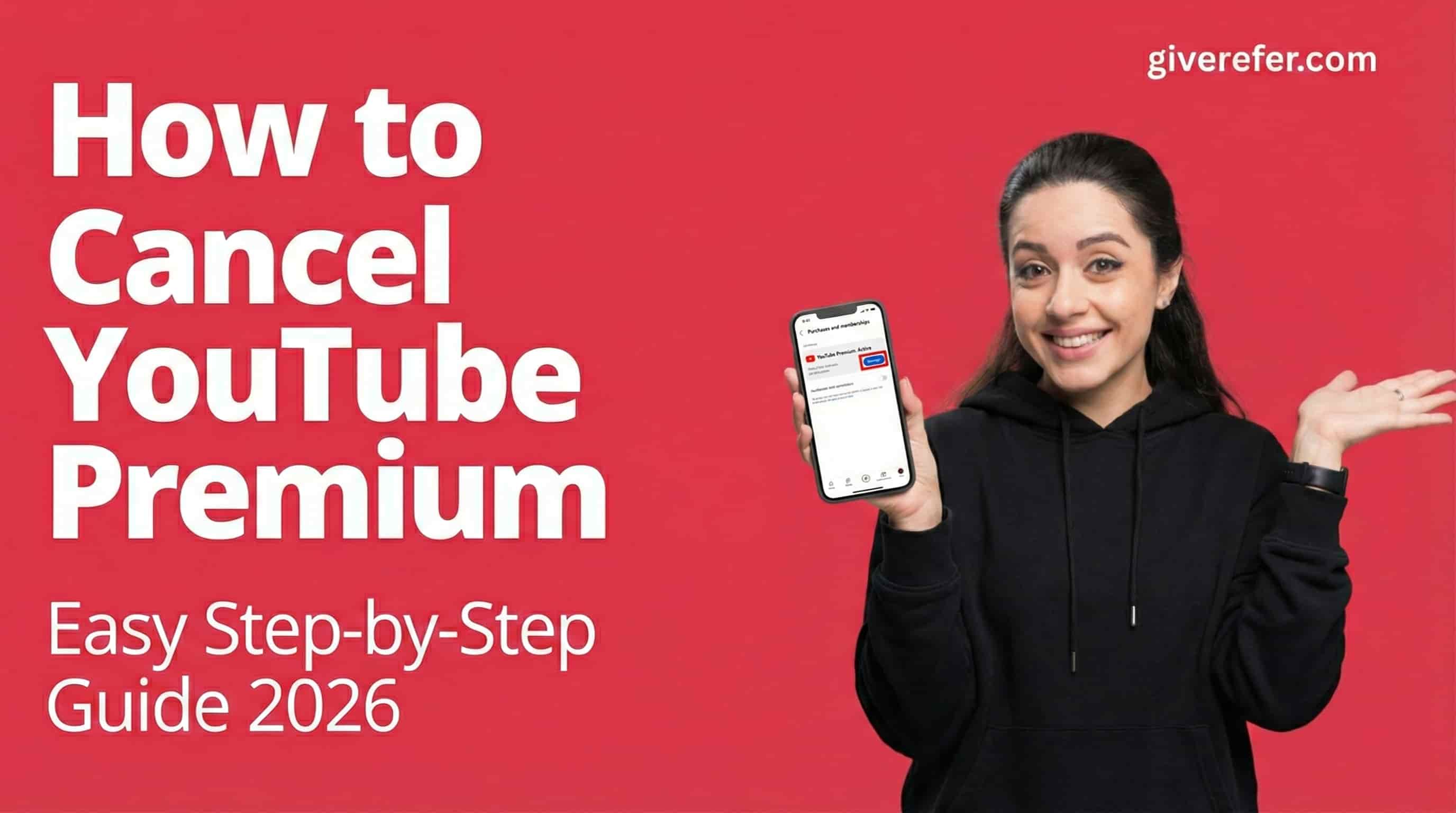
Looking to cancel your YouTube Premium subscription? Whether you're cutting costs, switching to the free version, or simply no longer need ad-free viewing, canceling is straightforward when you know where to look.
This comprehensive guide walks you through canceling YouTube Premium on every platform—web browsers, Android devices, iPhones, and third-party billing services. You'll also learn how to avoid accidental charges, what happens after cancellation, and smart alternatives to consider.
Let's get your subscription canceled quickly and correctly.
Understanding YouTube Premium Cancellation Basics
Before diving into the cancellation process, it's important to understand a few key points about how YouTube Premium subscriptions work.
What Happens When You Cancel
When you cancel YouTube Premium, your benefits continue until the end of your current billing period. You won't receive a refund for unused days, but you can enjoy premium features right up to the expiration date.
After cancellation:
- Ad-free viewing stops
- Background play becomes unavailable
- YouTube Music Premium access ends
- Offline downloads are deleted automatically
Will You Lose Your Playlists and History?
No. Canceling YouTube Premium doesn't affect your:
- Watch history
- Playlists
- Subscribed channels
- Personal recommendations
- Uploaded videos
You simply return to the standard YouTube experience with ads.
How to Cancel YouTube Premium on Desktop Web Browser
The desktop method is the most straightforward way to manage your subscription.
Step-by-Step Instructions
- Open YouTube and sign in to your account
- Click your profile icon in the top-right corner
- Select "Purchases and memberships" from the dropdown menu
- Find YouTube Premium in your active subscriptions
- Click "Manage" next to YouTube Premium
- Select "Deactivate" or "Cancel membership"
- Follow the prompts and confirm your cancellation
- Check your email for cancellation confirmation
Verification Tips
After completing these steps, you should see a confirmation message stating your access will continue until the end of the billing cycle. Save this confirmation for your records.
How to Cancel YouTube Premium on Android Devices
Android users have multiple cancellation options depending on how they subscribed.
Through the YouTube App
- Open the YouTube app on your Android device
- Tap your profile picture in the top-right
- Select "Purchases and memberships"
- Tap on YouTube Premium
- Select "Manage"
- Tap "Cancel membership"
- Confirm cancellation and follow prompts
Through Google Play Store
If you subscribed via Google Play:
- Open Google Play Store
- Tap the menu icon three horizontal lines
- Select "Subscriptions"
- Find YouTube Premium
- Tap "Cancel subscription"
- Confirm your choice
This method works even if you can't access the YouTube app directly.
How to Cancel YouTube Premium on iPhone and iPad
iOS users follow a different process since subscriptions go through Apple.
Cancellation Steps for iOS
- Open Settings on your iPhone or iPad
- Tap your name at the top
- Select "Subscriptions"
- Find YouTube Premium in the list
- Tap on YouTube Premium
- Select "Cancel Subscription"
- Confirm cancellation
Alternative Method Through YouTube App
You can also initiate cancellation through the YouTube iOS app, but you'll still be redirected to iPhone Settings to complete the process.
Important: If you don't see YouTube Premium in your subscriptions, you may have subscribed through a different platform or account.
Canceling Through Third-Party Billing Services
Some users subscribe to YouTube Premium through alternative payment providers.
PayPal Subscriptions
If you used PayPal:
- Log in to PayPal
- Click Settings gear icon
- Select "Payments"
- Click "Manage automatic payments"
- Find YouTube Premium
- Click "Cancel"
Carrier Billing
For subscriptions billed through your mobile carrier:
- Contact your carrier directly
- Request cancellation of YouTube Premium
- Verify cancellation in your next billing statement
Roku, Apple TV, and Other Platforms
Navigate to the subscription management section of the respective platform and cancel from there. Each platform has its own process for managing recurring payments.
Common Issues and Troubleshooting
Can't Find the Cancel Option?
This usually happens when:
- You're signed into the wrong Google account
- Your subscription was purchased through a different platform
- You're using a family plan managed by someone else
Solution: Verify which account holds the subscription and check all your linked accounts.
"Managed by Administrator" Message
If you see this message, your subscription is part of a family group or organizational account. Contact the plan administrator to request cancellation.
Already Canceled But Still Being Charged?
Check these points:
- Multiple Google accounts with separate subscriptions
- Family member's individual subscription
- Free trial that converted to paid subscription
- Billing cycle timing charges can take 24-48 hours to stop
Contact YouTube support if unauthorized charges continue after verification.
How to Avoid Being Charged After Free Trial
YouTube Premium offers free trials that automatically convert to paid subscriptions. Here's how to avoid surprise charges.
Cancel Immediately After Starting Trial
You can cancel your trial right after activation and still enjoy the full trial period. This prevents automatic conversion to a paid subscription.
Set Calendar Reminders
Create a reminder 2-3 days before your trial ends. This gives you time to decide whether to continue or cancel.
Check Your Subscription Status Regularly
Monitor your subscription through:
- YouTube settings
- Google Play Store
- Apple ID subscriptions
- Email notifications
Alternatives to Complete Cancellation
Before canceling, consider these options that might better fit your needs.
Pause Your Membership
Some regions allow you to pause YouTube Premium for up to six months. Check if this option appears in your subscription settings.
Downgrade to YouTube Music Premium
If you primarily use the music features, switching to YouTube Music Premium costs less while maintaining ad-free music streaming and downloads.
Family Plan Consideration
Sharing a family plan with up to five members reduces per-person costs significantly. Each member gets individual accounts with full Premium benefits.
Student Discount
Full-time students can access YouTube Premium at a discounted rate with verification. Check eligibility through the YouTube Premium page.
What to Do After Cancellation
Download Important Content
Before your access ends, download any YouTube Music playlists or saved videos you want to keep. These downloads will become unavailable once Premium expires.
Explore Free Alternatives
Consider these options:
- YouTube with ads – Free but ad-supported
- Spotify Free – Ad-supported music streaming
- Browser extensions – Ad-blocking tools use responsibly
- YouTube on desktop – Fewer ads than mobile
Monitor Your Billing
Check your bank statements for the next two billing cycles to confirm charges have stopped. Contact your bank if unexpected charges appear.
Getting Refunds for YouTube Premium
Refund Eligibility
YouTube Premium refunds are rare and typically only granted for:
- Technical issues preventing service access
- Accidental purchases within 48 hours
- Unauthorized charges
How to Request a Refund
- Visit the Google Play refund request page for Android
- Or contact Apple Support for iOS subscriptions
- Or submit a request through YouTube Help Center
- Explain your situation clearly
- Provide transaction details and dates
Refund approval isn't guaranteed, but legitimate cases are usually reviewed favorably.
Frequently Asked Questions
Can I cancel YouTube Premium anytime?
Yes, you can cancel YouTube Premium at any time without penalties. Your access continues until the end of your current billing period, and you won't be charged again.
Will I get a refund if I cancel mid-cycle?
No, YouTube Premium doesn't provide prorated refunds for partial billing periods. You maintain access to all features until your subscription officially expires.
How do I know my cancellation was successful?
You'll receive a confirmation email from YouTube or your billing platform. Additionally, your subscription status will show "Expires on [date]" instead of "Renews on [date]" in your account settings.
Can I resubscribe after canceling?
Absolutely. You can reactivate YouTube Premium anytime through the same platform you originally subscribed. Your previous preferences and settings will be restored.
What happens to my downloaded videos after cancellation?
All offline downloads become unavailable once your YouTube Premium subscription ends. The content remains on YouTube, but you'll need an active subscription to download videos again.
Does canceling on one device affect other devices?
Yes. YouTube Premium is tied to your Google account, not individual devices. Canceling removes Premium features across all devices signed into that account.
Can I cancel a family plan without affecting other members?
Only the family plan manager can cancel the entire plan. Individual members can leave the family group without canceling the whole subscription.
How long does it take for cancellation to process?
Cancellation is immediate, but your access continues until the billing period ends. Confirmation typically appears within minutes of completing the cancellation steps.
Conclusion
Canceling YouTube Premium is a simple process once you know where to look. Whether you're using a web browser, Android device, iPhone, or third-party billing service, the steps are straightforward and take just a few minutes.
Remember to cancel before your trial ends if you don't want to be charged, and take advantage of your remaining subscription time after cancellation. Your playlists, history, and account data remain intact—you simply return to the standard YouTube experience.
If you're on the fence, consider alternatives like pausing your membership or switching to a more affordable plan before canceling entirely.
Have questions about your specific situation? Check your subscription details in your account settings or contact YouTube support for personalized assistance.
